> ## Documentation Index
> Fetch the complete documentation index at: https://invopop-singapore.mintlify.site/llms.txt
> Use this file to discover all available pages before exploring further.
# PDF Invoice Guide
> How to issue simple PDF invoices globally.
## Introduction
The objective of this guide is to walk you through the process of generating a simple PDF invoice you can send to your customers. This is valid for tax regimes that don't require any electronic reporting or invoicing, and serves as a useful example from which to create your own workflows.
Once completed, the workflow will work with any GOBL invoice produced for any country in the world.
## Prerequisites
You'll need the following data to issue basic PDF invoices:
* **Supplier details:** fiscal details of the issuer.
* **Customer details:** fiscal details of who is receiving for B2B invoices.
* **Items:** list of products or services being sold, including quantities and prices.
* **Taxes & Rates:** knowing how these apply to each item.
* **Series:** a series is a counter with number formatting details to be able to generate a code.
## Setup
Issuing PDF invoices with Invopop requires very little preparation. We assume that you already have access to the [Invopop Console](https://console.invopop.com) and know how to [create a workflow](/guides/features/workflows).
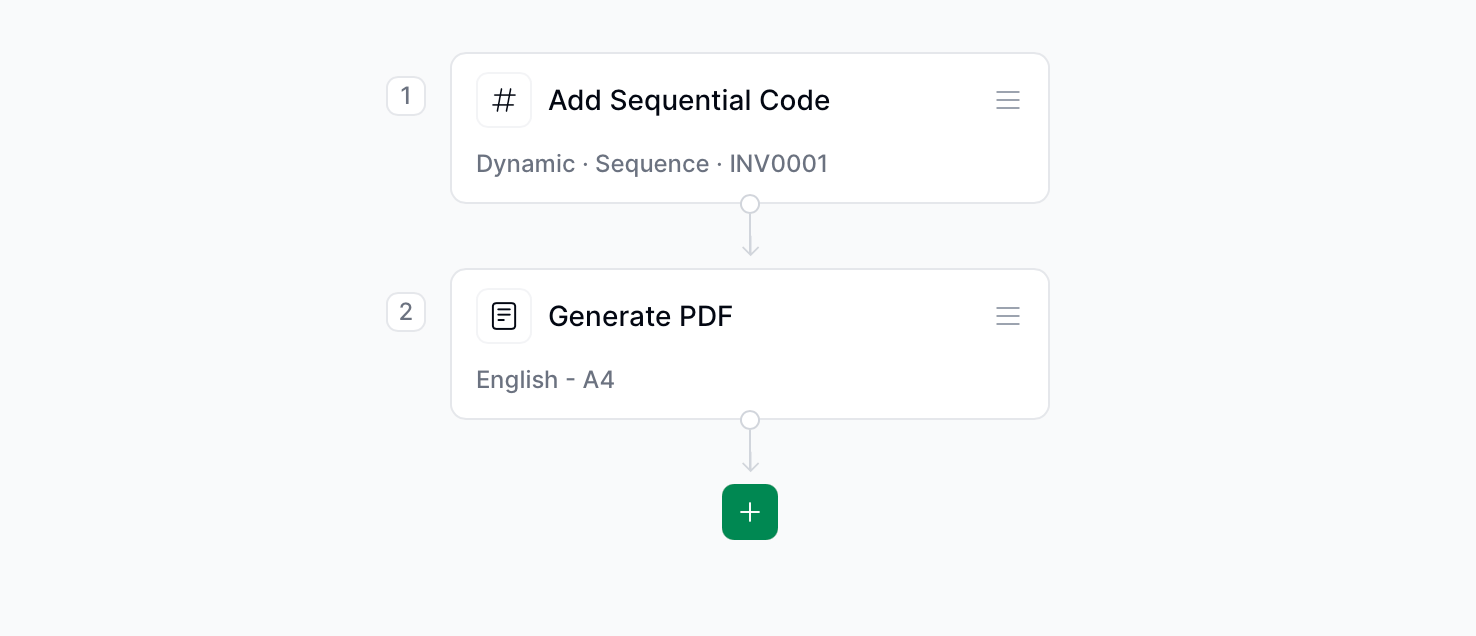
Basic workflow to generate a PDF invoice
Copy and paste into a new [Empty Invoice workflow](https://console.invopop.com/redirect/workflows/new?template=empty-invoice) code view.
```json Example PDF invoice workflow with states theme={"system"}
{
"name": "PDF Invoice",
"description": "Add a sequential code and generate PDF",
"schema": "bill/invoice",
"steps": [
{
"id": "6b16c200-a75f-11ef-ba08-91f336761c6c",
"name": "Add Sequential Code",
"provider": "sequence.enumerate",
"summary": "Dynamic · Invoice · 000001",
"config": {
"padding": 6,
"start": 1,
"name": "Invoice"
}
},
{
"id": "fc75e4f0-8721-11ef-a962-73e3f2037a52",
"name": "Sign Envelope",
"provider": "silo.close"
},
{
"id": "c61adaa0-7b55-11ef-bffc-d9a10ebf9f89",
"name": "Generate PDF",
"config": {
"logo_height": 40,
"locale": "en",
"date_format": "%Y-%m-%d"
},
"summary": "English",
"provider": "pdf"
}
],
"rescue": [
{
"id": "9a7b3d50-1358-11ef-af96-a18cfb3774fa",
"name": "Set State",
"config": {
"state": "error"
},
"provider": "silo.state",
"summary": "Set state to `error`{.state .error}"
}
]
}
```
In [Console](https://console.invopop.com) create a new workflow and select [Empty Invoice workflow](https://console.invopop.com/redirect/workflows/new?template=empty-invoice) in the template selector, then add the following steps:
1. **Add Sequential Code** - select the **dynamic** sequence option and set the name.
2. **Sign Envelope** - signs the GOBL document, preventing further changes.
3. **Generate PDF** - configure the logo and language according to your needs.
Finally, in the Error Handling area, add the **Set State** action and select status `Error`.
 ## Running
Use the following example GOBL Invoices inside the [Invopop Console](https://console.invopop.com) or via the API to create new silo entries. Once a silo entry has been stored, you can create a new job to run the "PDF Invoice" workflow you just created.
The following example demonstrates a simple invoice for a VAT registered supplier in the United Kingdom.
```json theme={"system"}
{
"$schema": "https://gobl.org/draft-0/bill/invoice",
"currency": "GBP",
"series": "TEST",
"supplier": {
"tax_id": {
"country": "GB",
"code": "844281425"
},
"name": "BrightTech Solutions Ltd.",
"emails": [
{
"addr": "billing@brighttech.co.uk"
}
],
"addresses": [
{
"num": "123",
"street": "Innovation Park",
"locality": "Cambridge",
"code": "CB1 2AB",
"country": "GB"
}
]
},
"customer": {
"tax_id": {
"country": "GB",
"code": "350983637"
},
"name": "GreenWave Energy Ltd.",
"emails": [
{
"addr": "info@greenwave.co.uk"
}
],
"addresses": [
{
"num": "45",
"street": "Riverside Business Park",
"locality": "London",
"code": "SW1A 1AA",
"country": "GB"
}
]
},
"lines": [
{
"quantity": 50,
"item": {
"name": "Thermal efficient mugs",
"price": "16.00"
},
"taxes": [
{
"cat": "VAT",
"rate": "standard"
}
]
}
]
}
```
The following example demonstrates a simple invoice for a VAT registered supplier in the United States.
```json theme={"system"}
{
"$schema": "https://gobl.org/draft-0/bill/invoice",
"series": "SAMPLE",
"currency": "USD",
"tax": {
"prices_include": "ST"
},
"supplier": {
"name": "Provide One Inc.",
"tax_id": {
"country": "US"
},
"addresses": [
{
"num": "16",
"street": "Jessie Street",
"locality": "San Francisco",
"region": "CA",
"code": "94105",
"country": "US"
}
],
"emails": [
{
"addr": "billing@provideone.com"
}
]
},
"customer": {
"name": "Sample Consumer",
"emails": [
{
"addr": "email@sample.com"
}
]
},
"lines": [
{
"i": 1,
"quantity": "20",
"item": {
"name": "Development services",
"price": "90.00",
"unit": "h"
},
"discounts": [
{
"percent": "10%",
"reason": "Special discount"
}
],
"taxes": [
{
"cat": "ST",
"percent": "8.5%"
}
]
}
]
}
```
## FAQ
## Running
Use the following example GOBL Invoices inside the [Invopop Console](https://console.invopop.com) or via the API to create new silo entries. Once a silo entry has been stored, you can create a new job to run the "PDF Invoice" workflow you just created.
The following example demonstrates a simple invoice for a VAT registered supplier in the United Kingdom.
```json theme={"system"}
{
"$schema": "https://gobl.org/draft-0/bill/invoice",
"currency": "GBP",
"series": "TEST",
"supplier": {
"tax_id": {
"country": "GB",
"code": "844281425"
},
"name": "BrightTech Solutions Ltd.",
"emails": [
{
"addr": "billing@brighttech.co.uk"
}
],
"addresses": [
{
"num": "123",
"street": "Innovation Park",
"locality": "Cambridge",
"code": "CB1 2AB",
"country": "GB"
}
]
},
"customer": {
"tax_id": {
"country": "GB",
"code": "350983637"
},
"name": "GreenWave Energy Ltd.",
"emails": [
{
"addr": "info@greenwave.co.uk"
}
],
"addresses": [
{
"num": "45",
"street": "Riverside Business Park",
"locality": "London",
"code": "SW1A 1AA",
"country": "GB"
}
]
},
"lines": [
{
"quantity": 50,
"item": {
"name": "Thermal efficient mugs",
"price": "16.00"
},
"taxes": [
{
"cat": "VAT",
"rate": "standard"
}
]
}
]
}
```
The following example demonstrates a simple invoice for a VAT registered supplier in the United States.
```json theme={"system"}
{
"$schema": "https://gobl.org/draft-0/bill/invoice",
"series": "SAMPLE",
"currency": "USD",
"tax": {
"prices_include": "ST"
},
"supplier": {
"name": "Provide One Inc.",
"tax_id": {
"country": "US"
},
"addresses": [
{
"num": "16",
"street": "Jessie Street",
"locality": "San Francisco",
"region": "CA",
"code": "94105",
"country": "US"
}
],
"emails": [
{
"addr": "billing@provideone.com"
}
]
},
"customer": {
"name": "Sample Consumer",
"emails": [
{
"addr": "email@sample.com"
}
]
},
"lines": [
{
"i": 1,
"quantity": "20",
"item": {
"name": "Development services",
"price": "90.00",
"unit": "h"
},
"discounts": [
{
"percent": "10%",
"reason": "Special discount"
}
],
"taxes": [
{
"cat": "ST",
"percent": "8.5%"
}
]
}
]
}
```
## FAQ
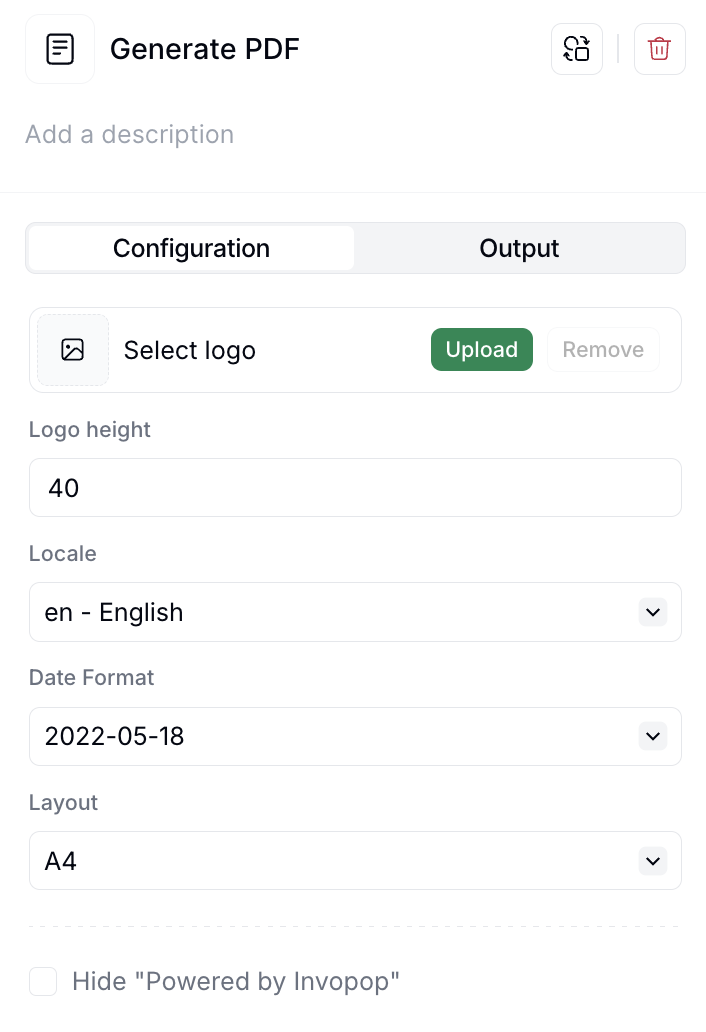 You can view all available customizations for the PDF in the configuration of the Generate PDF step.
To add a logo to the invoice, you can either upload it directly in the Generate PDF step or include a URL for the logo in the invoice payload by adding the "logos" field to the supplier.
You can view all available customizations for the PDF in the configuration of the Generate PDF step.
To add a logo to the invoice, you can either upload it directly in the Generate PDF step or include a URL for the logo in the invoice payload by adding the "logos" field to the supplier.