> ## Documentation Index
> Fetch the complete documentation index at: https://invopop-singapore.mintlify.site/llms.txt
> Use this file to discover all available pages before exploring further.
# Peppol Guide
> How to issue and receive electronic invoices through the global Peppol network
## Introduction
[Peppol (Pan-European Public Procurement On-Line)](https://peppol.org/) is a global network for electronic document exchange, widely adopted for e-invoicing across multiple countries. It provides a standardized protocol for companies to exchange business documents like invoices, credit notes, and purchase orders.
The Peppol network is particularly popular in:
* Nordic countries (Norway, Finland)
* Asia-Pacific region (Japan, Singapore, Malaysia, Australia, New Zealand)
* Several EU countries for business-to-government invoicing (Germany, Italy, Croatia)
Invopop allows you to send and receive documents through the Peppol network using a single integration while continuing to work with our [GOBL](https://docs.gobl.org/introduction) format.
This guide walks you through the steps to register a company in Invopop and then issue and receive invoices on its behalf.
## Setup
Let's prepare your workspace to work with Peppol. We'll configure the Peppol app and create three [workflows](/guides/features/workflows):
* **Invoice issuance workflow**: Send invoices through the Peppol network
* **Invoice reception workflow**: Receive invoices from the Peppol network
* **Party registration workflow**: Programmatically onboard companies (Parties) with Invopop
If you only want to *send* invoices through Peppol, you can skip step 3 and 4 of the setup. Alternatively, if you only want to *receive* invoices through Peppol, you can skip step 2.
The Peppol app is designed to only send and receive the document, generating and importing the appropriate file is delegated to format specific apps such as Oasis UBL or UN/CEFACT CII. This is done to keep the Peppol app simple and focused on the Peppol protocol, while allowing you to use the format that best suits your needs.
1. Within the [Console](https://console.invopop.com/), navigate to **Configuration** → **Apps**
2. Find the **Peppol** app in the list
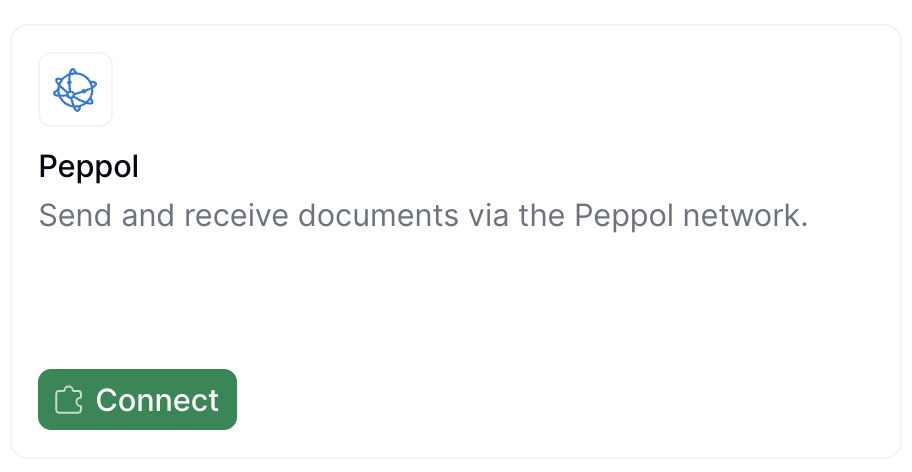
3. Click **Connect** to activate it. The Peppol app should now appear in the list of Enabled apps
 Now we'll create the workflow that converts invoices to a valid Peppol format and sends them through the Peppol network. In this example, we'll generate a Peppol BIS Billing UBL 3.0 document.
Skip this step if you only want to *receive* invoices via Peppol.
This workflow convert a GOBL document into the Peppol format and sends it to the network
Copy and paste into a new [Empty Invoice workflow](https://console.invopop.com/redirect/workflows/new?template=empty-invoice) code view.
```json Example Peppol send invoice workflow with states theme={"system"}
{
"name": "Peppol send invoice",
"description": "Send Peppol BIS invoice through Peppol network",
"schema": "bill/invoice",
"steps": [
{
"id": "33e23480-10ab-11f0-a09e-7b63571a4ae2",
"name": "Set State",
"provider": "silo.state",
"summary": "Set state to `processing`{.state .processing}",
"config": {
"state": "processing"
}
},
{
"id": "2354afd0-10ab-11f0-a09e-7b63571a4ae2",
"name": "Add Sequential Code",
"provider": "sequence.enumerate",
"summary": "Dynamic · PPL · PPL000001",
"config": {
"name": "PPL",
"padding": 6,
"prefix": "PPL",
"start": 1
}
},
{
"id": "fb06b190-10aa-11f0-a09e-7b63571a4ae2",
"name": "Sign Envelope",
"provider": "silo.close"
},
{
"id": "fc5aa8d0-10aa-11f0-a09e-7b63571a4ae2",
"name": "Generate UBL Document",
"provider": "ubl.generate",
"summary": "Peppol BIS Billing UBL Invoice/CreditNote V3",
"config": {
"doc_type": "bis-invoice-v3",
"private": false
}
},
{
"id": "075442a0-10ab-11f0-a09e-7b63571a4ae2",
"name": "Send Peppol Document",
"provider": "peppol.send"
},
{
"id": "3037a310-10ab-11f0-a09e-7b63571a4ae2",
"name": "Set State",
"provider": "silo.state",
"summary": "Set state to `sent`{.state .sent}",
"config": {
"state": "sent"
}
}
],
"rescue": [
{
"id": "39513240-10ab-11f0-a09e-7b63571a4ae2",
"name": "Set State",
"provider": "silo.state",
"summary": "Set state to `error`{.state .error}",
"config": {
"state": "error"
}
}
]
}
```
Use the [Console](https://console.invopop.com/) to build a [workflow](/guides/features/workflows) of the Invoice type. Include these essential steps:
1. **Set State** - to `Processing`.
2. **Sign Envelope** - Signs the GOBL document (can be substituted with `Add Sequential Code` with the `Sign Document` option enabled)
3. **Generate UBL document** - Converts the GOBL document to a Peppol BIS Billing UBL 3.0 document and attaches it to the original invoice entry.
4. **Send Peppol document** - Sends the generated XML attachment through the Peppol network
5. **Set State** - to `Sent`.
Finally, in the Error Handling area, add the **Set State** action and select `Error`.
This workflow receives incoming documents from the Peppol network and converts them to the GOBL format.
Copy and paste into a new [Empty Invoice workflow](https://console.invopop.com/redirect/workflows/new?template=empty-invoice) code view.
```json Example Peppol receive invoice workflow with states theme={"system"}
{
"name": "Peppol receive invoice",
"description": "Imports a Peppol document, with example webhook",
"steps": [
{
"id": "db61c3c0-0fb5-11f0-b078-9fc456829eca",
"name": "Import Peppol Document",
"provider": "peppol.import",
"next": [
{
"status": "OK",
"code": "UBL",
"steps": [
{
"id": "62e94570-8fdb-11f0-a8fb-61ec9e5a76ba",
"name": "Import UBL Document",
"provider": "ubl.import"
}
],
"stop": false
},
{
"status": "OK",
"code": "CII",
"steps": [
{
"id": "6480ae50-8fdb-11f0-a8fb-61ec9e5a76ba",
"name": "Import UN/CEFACT CII Document",
"provider": "cii.import"
}
],
"stop": false
}
]
},
{
"id": "fdfc81a0-6e23-11f0-913b-5732f966b346",
"name": "Set Folder",
"provider": "silo.folder",
"summary": "Set folder to `Invoices · Expenses`{.font-medium}",
"config": {
"folder": "expenses"
}
},
{
"id": "dd14a3e0-0fb5-11f0-b078-9fc456829eca",
"name": "Set State",
"provider": "silo.state",
"summary": "Set state to `registered`{.state .registered}",
"config": {
"state": "registered"
}
}
],
"rescue": [
{
"id": "e109d2e0-0fb5-11f0-b078-9fc456829eca",
"name": "Set State",
"provider": "silo.state",
"summary": "Set state to `error`{.state .error}",
"config": {
"state": "error"
}
}
]
}
```
In [Console](https://console.invopop.com) create a new workflow and select [Empty Invoice workflow](https://console.invopop.com/redirect/workflows/new?template=empty-invoice) in the template selector, then add the following steps:
1. **Import Peppol Document** - Add two conditions with codes UBL and CII to handle both formats.
* **Import UBL Document** - Add this to the condition with UBL.
* **Import CII Document** - Add this to the condition with CII.
2. **Set State** - to `Registered`.
3. **Send Webhook** (optional) - let your services know a Peppol document was received.
Finally, in the Error Handling area, add the **Set State** action and select `Error`.
Within the [Console](https://console.invopop.com/), navigate to **Configuration** → **Apps**, find the Peppol App and click **Configure**. You'll need to set two fields:
* **Incoming Workflow**: Select the Receive Invoice Workflow created in Step 3. This is where the app will send incoming invoices (expenses) received from the Peppol network.
This workflow onboards companies (Peppol participants) to Invopop before they can issue or receive invoices. If you're managing your own invoices only, you may use this workflow just once. However, if you're offering Peppol to your customers through Invopop ([white-label use case](/guides/use-cases/white-label)), you'll run this workflow for each merchant you onboard.
Onboards Peppol participants by sending a registration link
Copy and paste into a new [Empty Party workflow](https://console.invopop.com/redirect/workflows/new?template=empty-party) code view.
```json Example Peppol register party invoice workflow with states theme={"system"}
{
"name": "Register Peppol party",
"description": "Onboards participants before they can issue or receive invoices",
"steps": [
{
"id": "0adf46e0-8fdb-11f0-a8fb-61ec9e5a76ba",
"name": "Register Party for Approval",
"provider": "peppol.register.approval"
},
{
"id": "0e44b900-8fdb-11f0-a8fb-61ec9e5a76ba",
"name": "Set State",
"provider": "silo.state",
"summary": "Set state to `processing`{.state .processing}",
"config": {
"state": "processing"
}
},
{
"id": "12aaf950-8fdb-11f0-a8fb-61ec9e5a76ba",
"name": "Wait for Approval",
"provider": "peppol.wait.approval"
},
{
"id": "7a5a4db0-0fae-11f0-b37b-0be1c251a274",
"name": "Register Peppol Party",
"provider": "peppol.register",
"summary": "Enable with groups: ubl-invoice",
"config": {
"disable": false,
"doc_groups": [
"ubl-invoice"
],
"visibility": "smp+sml+peppol"
}
},
{
"id": "7c2fa9f0-0fae-11f0-b37b-0be1c251a274",
"name": "Set State",
"provider": "silo.state",
"summary": "Set state to `registered`{.state .registered}",
"config": {
"state": "registered"
}
}
],
"rescue": [
{
"id": "a34e83f0-25dc-11f0-b641-350e77c28eed",
"name": "Set State",
"provider": "silo.state",
"summary": "Set state to `error`{.state .error}",
"config": {
"state": "error"
}
}
]
}
```
Before starting, review the [workflows guide](/guides/features/workflows) to understand the general setup process.
In [Console](https://console.invopop.com), create a new workflow and choose [Empty Party workflow](https://console.invopop.com/redirect/workflows/new?template=empty-party) as the base. Then name the workflow with a descriptive label such as "Register Peppol participant".
This workflow is composed by these steps:
1. **Register for Approval** - This generates a link to the registration wizard where proof of ownership will be collected.
2. **Set State** - select `Processing`.
3. **Wait for Approval** - Invopop will validate the company identity and ownership. This can take up to 72 hours.
4. **Register Peppol Party** - Complete the normal registration process after approval.
5. **Set State** - select `Registered`.
Finally, in the Error Handling area, add the **Set State** action and select `Error`.
Congratulations! Your workspace is now configured to send and receive Peppol documents and programmatically onboard Peppol participants with Invopop.
## Running
After setup, you can perform three key operations with Peppol in Invopop: onboarding entities (parties) so they can use Peppol, sending invoices through Peppol, and receiving Peppol invoices.
### Registering parties
Business entities are represented in Invopop as GOBL org.party objects, which we call Parties.
Peppol requires Invopop to collect proof of ownership for regulatory compliance. As outlined in [Section 3.3 End user Identification of the Internal Regulations II document](https://openpeppol.atlassian.net/wiki/spaces/AF/pages/3963191334/Internal+Regulations), key details such as VAT number, address, contact information, and company name must be provided and validated during registration.
To register a party:
1. Upload it to the Silo with required company information
2. Send it to the party registration workflow
**Note for Belgium:** If you're registering for the first time in Belgium, you'll need to use a migration workflow (a modified initial registration path required when first onboarding in Belgium) instead of the standard registration workflow. See the [Belgium Peppol Guide](/guides/countries/be-peppol) for specific instructions on obtaining a migration key from BOSA and setting up the migration process.
#### Upload a party document
You can upload parties via the [Create an Entry](/api-ref/silo/entries/create-an-entry-put) API endpoint or manually through the Console. For this guide, we'll demonstrate the manual process:
1. Find the **Contacts** section in the sidebar and click **Suppliers**
2. Click **+ New Supplier** to open the editor
3. Enter the required information (or use the example below)
The mandatory fields for Peppol registration are:
* Company name (fiscal name)
* VAT number (tax ID)
* Complete company address
* Contact information
* Peppol participant ID
If no Peppol participant ID is provided, Invopop will assign one during registration based on the VAT number and the country.
All fields are required for identity validation and proof of ownership verification.
Click **Build** to validate the document, then **Save**.
```json Peppol party example theme={"system"}
{
"$schema": "https://gobl.org/draft-0/org/party",
"name": "Invopop S.L.",
"tax_id": {
"country": "ES",
"code": "B85905495"
},
"inboxes": [
{
"key": "peppol",
"scheme": "9920",
"code": "B85905495"
}
],
"addresses": [
{
"num": "42",
"street": "Calle Pradillo",
"locality": "Madrid",
"region": "Madrid",
"code": "28002"
}
],
"emails": [
{
"addr": "billing+test@example.com"
}
]
}
```
#### Send to the registration workflow
Once the document is saved:
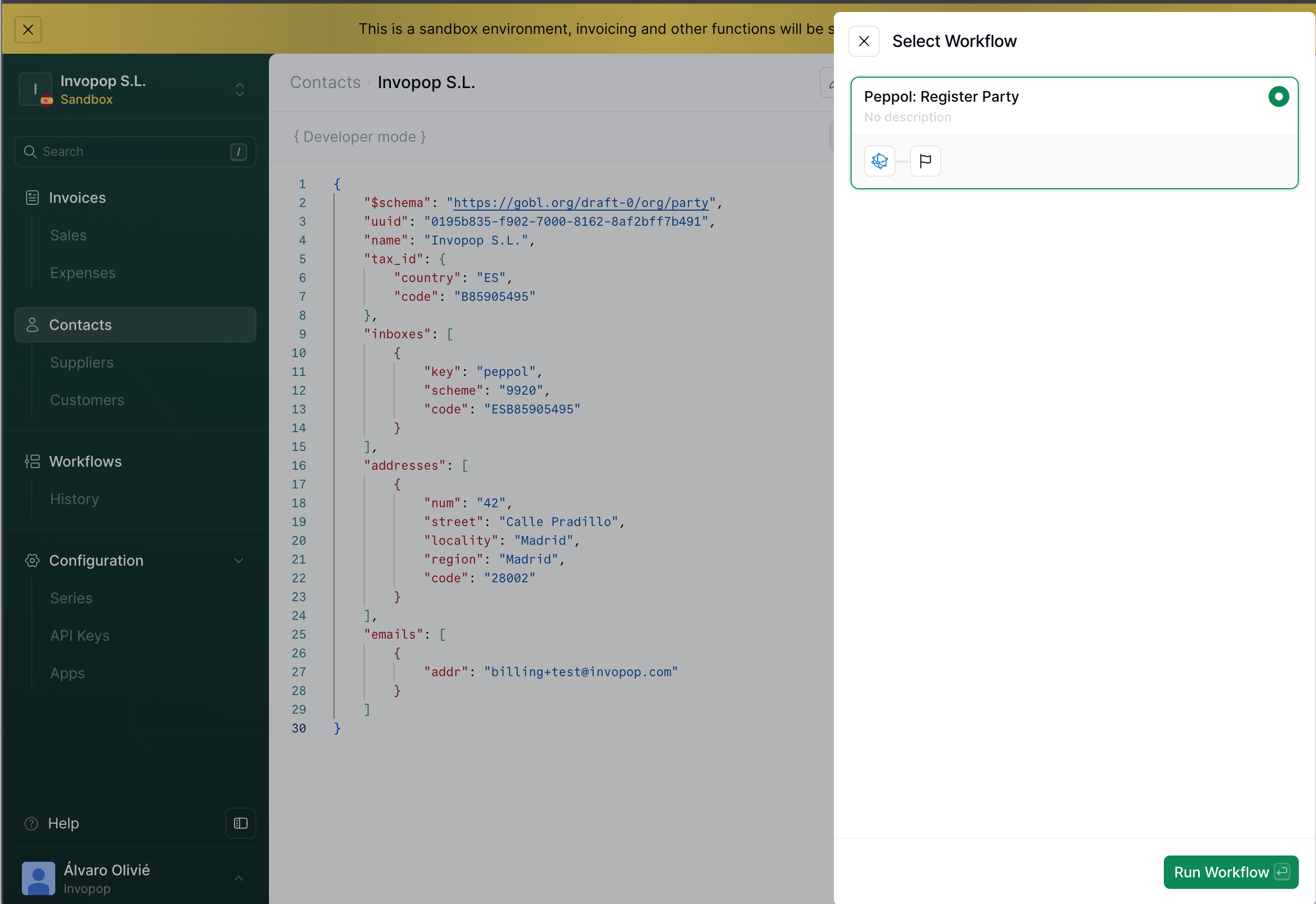
1. Click the **Select Workflow** button
2. Select the **Register Supplier** workflow created during setup
3. Click **Run Workflow**
The execution should succeed, and the silo entry's state will change to "Processing." The first step creates a registration link that you can extract from the **Meta** tab or via the API:
Now we'll create the workflow that converts invoices to a valid Peppol format and sends them through the Peppol network. In this example, we'll generate a Peppol BIS Billing UBL 3.0 document.
Skip this step if you only want to *receive* invoices via Peppol.
This workflow convert a GOBL document into the Peppol format and sends it to the network
Copy and paste into a new [Empty Invoice workflow](https://console.invopop.com/redirect/workflows/new?template=empty-invoice) code view.
```json Example Peppol send invoice workflow with states theme={"system"}
{
"name": "Peppol send invoice",
"description": "Send Peppol BIS invoice through Peppol network",
"schema": "bill/invoice",
"steps": [
{
"id": "33e23480-10ab-11f0-a09e-7b63571a4ae2",
"name": "Set State",
"provider": "silo.state",
"summary": "Set state to `processing`{.state .processing}",
"config": {
"state": "processing"
}
},
{
"id": "2354afd0-10ab-11f0-a09e-7b63571a4ae2",
"name": "Add Sequential Code",
"provider": "sequence.enumerate",
"summary": "Dynamic · PPL · PPL000001",
"config": {
"name": "PPL",
"padding": 6,
"prefix": "PPL",
"start": 1
}
},
{
"id": "fb06b190-10aa-11f0-a09e-7b63571a4ae2",
"name": "Sign Envelope",
"provider": "silo.close"
},
{
"id": "fc5aa8d0-10aa-11f0-a09e-7b63571a4ae2",
"name": "Generate UBL Document",
"provider": "ubl.generate",
"summary": "Peppol BIS Billing UBL Invoice/CreditNote V3",
"config": {
"doc_type": "bis-invoice-v3",
"private": false
}
},
{
"id": "075442a0-10ab-11f0-a09e-7b63571a4ae2",
"name": "Send Peppol Document",
"provider": "peppol.send"
},
{
"id": "3037a310-10ab-11f0-a09e-7b63571a4ae2",
"name": "Set State",
"provider": "silo.state",
"summary": "Set state to `sent`{.state .sent}",
"config": {
"state": "sent"
}
}
],
"rescue": [
{
"id": "39513240-10ab-11f0-a09e-7b63571a4ae2",
"name": "Set State",
"provider": "silo.state",
"summary": "Set state to `error`{.state .error}",
"config": {
"state": "error"
}
}
]
}
```
Use the [Console](https://console.invopop.com/) to build a [workflow](/guides/features/workflows) of the Invoice type. Include these essential steps:
1. **Set State** - to `Processing`.
2. **Sign Envelope** - Signs the GOBL document (can be substituted with `Add Sequential Code` with the `Sign Document` option enabled)
3. **Generate UBL document** - Converts the GOBL document to a Peppol BIS Billing UBL 3.0 document and attaches it to the original invoice entry.
4. **Send Peppol document** - Sends the generated XML attachment through the Peppol network
5. **Set State** - to `Sent`.
Finally, in the Error Handling area, add the **Set State** action and select `Error`.
This workflow receives incoming documents from the Peppol network and converts them to the GOBL format.
Copy and paste into a new [Empty Invoice workflow](https://console.invopop.com/redirect/workflows/new?template=empty-invoice) code view.
```json Example Peppol receive invoice workflow with states theme={"system"}
{
"name": "Peppol receive invoice",
"description": "Imports a Peppol document, with example webhook",
"steps": [
{
"id": "db61c3c0-0fb5-11f0-b078-9fc456829eca",
"name": "Import Peppol Document",
"provider": "peppol.import",
"next": [
{
"status": "OK",
"code": "UBL",
"steps": [
{
"id": "62e94570-8fdb-11f0-a8fb-61ec9e5a76ba",
"name": "Import UBL Document",
"provider": "ubl.import"
}
],
"stop": false
},
{
"status": "OK",
"code": "CII",
"steps": [
{
"id": "6480ae50-8fdb-11f0-a8fb-61ec9e5a76ba",
"name": "Import UN/CEFACT CII Document",
"provider": "cii.import"
}
],
"stop": false
}
]
},
{
"id": "fdfc81a0-6e23-11f0-913b-5732f966b346",
"name": "Set Folder",
"provider": "silo.folder",
"summary": "Set folder to `Invoices · Expenses`{.font-medium}",
"config": {
"folder": "expenses"
}
},
{
"id": "dd14a3e0-0fb5-11f0-b078-9fc456829eca",
"name": "Set State",
"provider": "silo.state",
"summary": "Set state to `registered`{.state .registered}",
"config": {
"state": "registered"
}
}
],
"rescue": [
{
"id": "e109d2e0-0fb5-11f0-b078-9fc456829eca",
"name": "Set State",
"provider": "silo.state",
"summary": "Set state to `error`{.state .error}",
"config": {
"state": "error"
}
}
]
}
```
In [Console](https://console.invopop.com) create a new workflow and select [Empty Invoice workflow](https://console.invopop.com/redirect/workflows/new?template=empty-invoice) in the template selector, then add the following steps:
1. **Import Peppol Document** - Add two conditions with codes UBL and CII to handle both formats.
* **Import UBL Document** - Add this to the condition with UBL.
* **Import CII Document** - Add this to the condition with CII.
2. **Set State** - to `Registered`.
3. **Send Webhook** (optional) - let your services know a Peppol document was received.
Finally, in the Error Handling area, add the **Set State** action and select `Error`.
Within the [Console](https://console.invopop.com/), navigate to **Configuration** → **Apps**, find the Peppol App and click **Configure**. You'll need to set two fields:
* **Incoming Workflow**: Select the Receive Invoice Workflow created in Step 3. This is where the app will send incoming invoices (expenses) received from the Peppol network.
This workflow onboards companies (Peppol participants) to Invopop before they can issue or receive invoices. If you're managing your own invoices only, you may use this workflow just once. However, if you're offering Peppol to your customers through Invopop ([white-label use case](/guides/use-cases/white-label)), you'll run this workflow for each merchant you onboard.
Onboards Peppol participants by sending a registration link
Copy and paste into a new [Empty Party workflow](https://console.invopop.com/redirect/workflows/new?template=empty-party) code view.
```json Example Peppol register party invoice workflow with states theme={"system"}
{
"name": "Register Peppol party",
"description": "Onboards participants before they can issue or receive invoices",
"steps": [
{
"id": "0adf46e0-8fdb-11f0-a8fb-61ec9e5a76ba",
"name": "Register Party for Approval",
"provider": "peppol.register.approval"
},
{
"id": "0e44b900-8fdb-11f0-a8fb-61ec9e5a76ba",
"name": "Set State",
"provider": "silo.state",
"summary": "Set state to `processing`{.state .processing}",
"config": {
"state": "processing"
}
},
{
"id": "12aaf950-8fdb-11f0-a8fb-61ec9e5a76ba",
"name": "Wait for Approval",
"provider": "peppol.wait.approval"
},
{
"id": "7a5a4db0-0fae-11f0-b37b-0be1c251a274",
"name": "Register Peppol Party",
"provider": "peppol.register",
"summary": "Enable with groups: ubl-invoice",
"config": {
"disable": false,
"doc_groups": [
"ubl-invoice"
],
"visibility": "smp+sml+peppol"
}
},
{
"id": "7c2fa9f0-0fae-11f0-b37b-0be1c251a274",
"name": "Set State",
"provider": "silo.state",
"summary": "Set state to `registered`{.state .registered}",
"config": {
"state": "registered"
}
}
],
"rescue": [
{
"id": "a34e83f0-25dc-11f0-b641-350e77c28eed",
"name": "Set State",
"provider": "silo.state",
"summary": "Set state to `error`{.state .error}",
"config": {
"state": "error"
}
}
]
}
```
Before starting, review the [workflows guide](/guides/features/workflows) to understand the general setup process.
In [Console](https://console.invopop.com), create a new workflow and choose [Empty Party workflow](https://console.invopop.com/redirect/workflows/new?template=empty-party) as the base. Then name the workflow with a descriptive label such as "Register Peppol participant".
This workflow is composed by these steps:
1. **Register for Approval** - This generates a link to the registration wizard where proof of ownership will be collected.
2. **Set State** - select `Processing`.
3. **Wait for Approval** - Invopop will validate the company identity and ownership. This can take up to 72 hours.
4. **Register Peppol Party** - Complete the normal registration process after approval.
5. **Set State** - select `Registered`.
Finally, in the Error Handling area, add the **Set State** action and select `Error`.
Congratulations! Your workspace is now configured to send and receive Peppol documents and programmatically onboard Peppol participants with Invopop.
## Running
After setup, you can perform three key operations with Peppol in Invopop: onboarding entities (parties) so they can use Peppol, sending invoices through Peppol, and receiving Peppol invoices.
### Registering parties
Business entities are represented in Invopop as GOBL org.party objects, which we call Parties.
Peppol requires Invopop to collect proof of ownership for regulatory compliance. As outlined in [Section 3.3 End user Identification of the Internal Regulations II document](https://openpeppol.atlassian.net/wiki/spaces/AF/pages/3963191334/Internal+Regulations), key details such as VAT number, address, contact information, and company name must be provided and validated during registration.
To register a party:
1. Upload it to the Silo with required company information
2. Send it to the party registration workflow
**Note for Belgium:** If you're registering for the first time in Belgium, you'll need to use a migration workflow (a modified initial registration path required when first onboarding in Belgium) instead of the standard registration workflow. See the [Belgium Peppol Guide](/guides/countries/be-peppol) for specific instructions on obtaining a migration key from BOSA and setting up the migration process.
#### Upload a party document
You can upload parties via the [Create an Entry](/api-ref/silo/entries/create-an-entry-put) API endpoint or manually through the Console. For this guide, we'll demonstrate the manual process:
1. Find the **Contacts** section in the sidebar and click **Suppliers**
2. Click **+ New Supplier** to open the editor
3. Enter the required information (or use the example below)
The mandatory fields for Peppol registration are:
* Company name (fiscal name)
* VAT number (tax ID)
* Complete company address
* Contact information
* Peppol participant ID
If no Peppol participant ID is provided, Invopop will assign one during registration based on the VAT number and the country.
All fields are required for identity validation and proof of ownership verification.
Click **Build** to validate the document, then **Save**.
```json Peppol party example theme={"system"}
{
"$schema": "https://gobl.org/draft-0/org/party",
"name": "Invopop S.L.",
"tax_id": {
"country": "ES",
"code": "B85905495"
},
"inboxes": [
{
"key": "peppol",
"scheme": "9920",
"code": "B85905495"
}
],
"addresses": [
{
"num": "42",
"street": "Calle Pradillo",
"locality": "Madrid",
"region": "Madrid",
"code": "28002"
}
],
"emails": [
{
"addr": "billing+test@example.com"
}
]
}
```
#### Send to the registration workflow
Once the document is saved:
1. Click the **Select Workflow** button
2. Select the **Register Supplier** workflow created during setup
3. Click **Run Workflow**
The execution should succeed, and the silo entry's state will change to "Processing." The first step creates a registration link that you can extract from the **Meta** tab or via the API:
 This link leads to a webform where you can upload proof of ownership documents and confirm your company details:
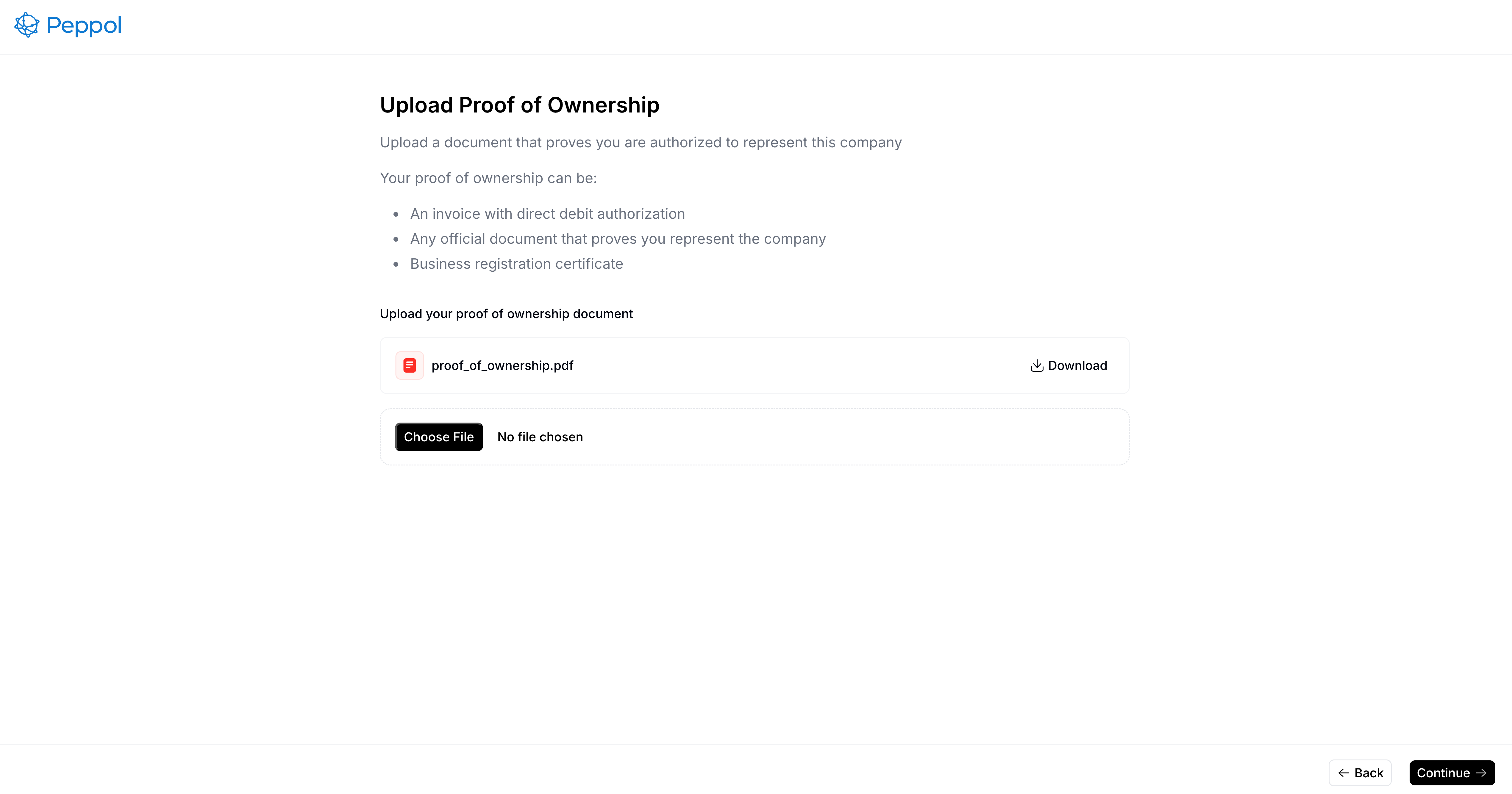 After submitting the webform, Invopop will be notified and will validate your information within up to 72 hours. The approval status will be shown in the Meta tab of the entry.
#### Programmatic registration (white-label)
For programmatic integration, you can use our API instead of the webform. This is particularly useful for white-label implementations where you want to integrate the registration process into your own application.
You can achieve this by uploading the proof of ownership document using the [API](/api-ref/apps/peppol/ownership-upload). This launches the validation process automatically.
#### Completion
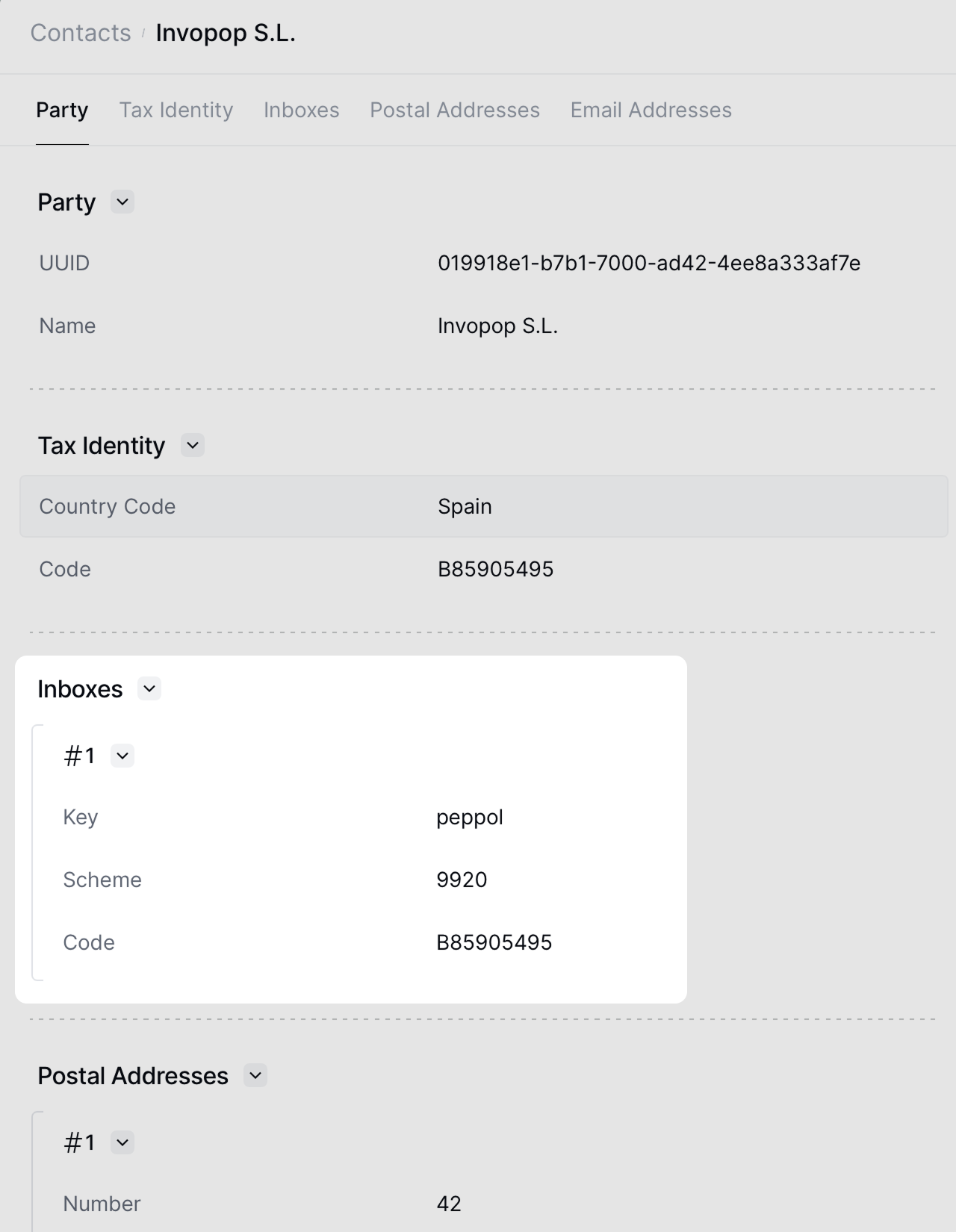
When Invopop approves your registration, we will automatically register your party with the Peppol network as before. You'll see the Peppol Participant ID in the Meta tab of the entry and the supplier's entry will contain an `inboxes` array. This information should be included in each invoice issued by this supplier.
After submitting the webform, Invopop will be notified and will validate your information within up to 72 hours. The approval status will be shown in the Meta tab of the entry.
#### Programmatic registration (white-label)
For programmatic integration, you can use our API instead of the webform. This is particularly useful for white-label implementations where you want to integrate the registration process into your own application.
You can achieve this by uploading the proof of ownership document using the [API](/api-ref/apps/peppol/ownership-upload). This launches the validation process automatically.
#### Completion
When Invopop approves your registration, we will automatically register your party with the Peppol network as before. You'll see the Peppol Participant ID in the Meta tab of the entry and the supplier's entry will contain an `inboxes` array. This information should be included in each invoice issued by this supplier.
 The party can now send and/or receive invoices in Peppol via Invopop.
### Sending invoices
To send an invoice, you need to store it as a Silo Entry with the
1. Store it as a [Silo Entry](/api-ref/silo/entries/create-an-entry-put) with the Peppol inboxes previously obtained.
2. Send it to the Sending Invoice Workflow created during setup
You can perform these steps manually via the Console or programmatically via the API using the [Create an Entry](/api-ref/silo/entries/create-an-entry-put) and [Create a Job](/api-ref/transform/jobs/create-a-job-post) endpoints. For API usage, refer to our [quickstart guide](/api-ref/introduction).
When creating your invoice, ensure you:
1. Set the appropriate `$regime` field based on the issuer's country (e.g., `NO` for Norway, `FI` for Finland)
2. Add the `eu-en16931-v2017` addon to enable validations and extensions needed for Peppol
```json Peppol B2B Invoice theme={"system"}
{
"$schema": "https://gobl.org/draft-0/bill/invoice",
"$regime": "ES",
"type": "standard",
"series": "INV",
"code": "PP000003",
"issue_date": "2025-04-03",
"currency": "EUR",
"tax": {
"rounding": "currency"
},
"supplier": {
"uuid": "0195f6ab-1292-7000-9ecb-84732e730ddf",
"name": "Cyberdyne Systems Spain S.L.",
"tax_id": {
"country": "ES",
"code": "B98602642"
},
"addresses": [
{
"street": "Paseo de la Castellana 120",
"locality": "Madrid",
"region": "Madrid",
"code": "28020",
"country": "ES"
}
],
"emails": [
{
"addr": "billing@cyberdynesys.com"
}
]
},
"customer": {
"name": "Invopop S.L.",
"tax_id": {
"country": "ES",
"code": "B85905495"
},
"addresses": [
{
"street": "Calle Pradillo 42",
"locality": "Madrid",
"region": "Madrid",
"code": "28002",
"country": "ES"
}
],
"emails": [
{
"addr": "billing+test@invopop.com"
}
]
},
"lines": [
{
"i": 1,
"quantity": "12",
"item": {
"name": "Sambox services",
"price": "145.00",
"unit": "one"
},
"sum": "1740.00",
"taxes": [
{
"cat": "VAT",
"percent": "21.0%",
"ext": {
"untdid-tax-category": "S"
}
}
],
"total": "1740.00"
}
]
}
```
### Receiving invoices
Invopop automatically processes invoices received from the Peppol network using your configured *Incoming Workflow*.
The workflow converts Peppol documents to GOBL format and creates Silo Entries for each invoice. Configure your workflow with webhooks or Google Drive integration to deliver these invoices to your systems.
## FAQ
Please contact the [Invopop support team](mailto:support@invopop.com) if you have any questions that are not listed here.
The visibility of your Peppol Party determines what documents you can send and receive.
* `smp`: Only SMP, should be used for testing
* `smp+sml`: SMP and SML, useful when you want to send documents but not receive them
* `smp+sml+peppol`: SMP, SML, and Peppol Directory, recommended for both sending and receiving documents as you will be visible in the Peppol Directory
In general, you should use the highest visibility available.
You can disable Peppol for a Party by running a workflow with the *Register Peppol Party* step and setting the Status to `Disabled`.
The party can now send and/or receive invoices in Peppol via Invopop.
### Sending invoices
To send an invoice, you need to store it as a Silo Entry with the
1. Store it as a [Silo Entry](/api-ref/silo/entries/create-an-entry-put) with the Peppol inboxes previously obtained.
2. Send it to the Sending Invoice Workflow created during setup
You can perform these steps manually via the Console or programmatically via the API using the [Create an Entry](/api-ref/silo/entries/create-an-entry-put) and [Create a Job](/api-ref/transform/jobs/create-a-job-post) endpoints. For API usage, refer to our [quickstart guide](/api-ref/introduction).
When creating your invoice, ensure you:
1. Set the appropriate `$regime` field based on the issuer's country (e.g., `NO` for Norway, `FI` for Finland)
2. Add the `eu-en16931-v2017` addon to enable validations and extensions needed for Peppol
```json Peppol B2B Invoice theme={"system"}
{
"$schema": "https://gobl.org/draft-0/bill/invoice",
"$regime": "ES",
"type": "standard",
"series": "INV",
"code": "PP000003",
"issue_date": "2025-04-03",
"currency": "EUR",
"tax": {
"rounding": "currency"
},
"supplier": {
"uuid": "0195f6ab-1292-7000-9ecb-84732e730ddf",
"name": "Cyberdyne Systems Spain S.L.",
"tax_id": {
"country": "ES",
"code": "B98602642"
},
"addresses": [
{
"street": "Paseo de la Castellana 120",
"locality": "Madrid",
"region": "Madrid",
"code": "28020",
"country": "ES"
}
],
"emails": [
{
"addr": "billing@cyberdynesys.com"
}
]
},
"customer": {
"name": "Invopop S.L.",
"tax_id": {
"country": "ES",
"code": "B85905495"
},
"addresses": [
{
"street": "Calle Pradillo 42",
"locality": "Madrid",
"region": "Madrid",
"code": "28002",
"country": "ES"
}
],
"emails": [
{
"addr": "billing+test@invopop.com"
}
]
},
"lines": [
{
"i": 1,
"quantity": "12",
"item": {
"name": "Sambox services",
"price": "145.00",
"unit": "one"
},
"sum": "1740.00",
"taxes": [
{
"cat": "VAT",
"percent": "21.0%",
"ext": {
"untdid-tax-category": "S"
}
}
],
"total": "1740.00"
}
]
}
```
### Receiving invoices
Invopop automatically processes invoices received from the Peppol network using your configured *Incoming Workflow*.
The workflow converts Peppol documents to GOBL format and creates Silo Entries for each invoice. Configure your workflow with webhooks or Google Drive integration to deliver these invoices to your systems.
## FAQ
Please contact the [Invopop support team](mailto:support@invopop.com) if you have any questions that are not listed here.
The visibility of your Peppol Party determines what documents you can send and receive.
* `smp`: Only SMP, should be used for testing
* `smp+sml`: SMP and SML, useful when you want to send documents but not receive them
* `smp+sml+peppol`: SMP, SML, and Peppol Directory, recommended for both sending and receiving documents as you will be visible in the Peppol Directory
In general, you should use the highest visibility available.
You can disable Peppol for a Party by running a workflow with the *Register Peppol Party* step and setting the Status to `Disabled`.