

Introduction
Invopop’s Smart Receipts provider allows you to generate and issue electronic tickets (documento commerciale/scontrino elettronico) in Italy. The documento commerciale is a digital fiscal document that records sales transactions and transmits them to the Agenzia delle Entrate (AdE). This digital receipt replaces traditional paper receipts while maintaining full fiscal compliance and serves as official proof of purchase for your customers. Italian law requires businesses to transmit sales data digitally through either a certified Registratore Telematico (RT) or the AdE’s online portal. Smart Receipts streamlines this process by providing a secure interface to relay your sales data to the AdE through a local provider. Important distinctions for the Documento Commerciale:- It is not an invoice (fattura) - invoices require detailed buyer information and follow different tax rules.
- It does not replace transport documents (documento di trasporto).
- It is not a simple internal receipt - it serves an official fiscal function requiring AdE transmission.
- It must include VAT at the time of sale - deferred VAT payment is not permitted.
Prerequisites
Before you begin, ensure you have:- An Italian tax ID (Partita IVA) for the supplier.
- Invoice line items that include:
- quantity,
- name ,
- price (including VAT),
- VAT rate,
- item type (specified in extension).
Setup
There are five key processes to prepare:- Create a supplier post-registration workflow.
- Connect the Italian Smart Receipts app.
- Configure a supplier registration workflow.
- Prepare an invoicing workflow.
- Prepare a voiding workflow.
These instructions work in both sandbox and live environments. The only differences are in supplier data and registration details when using test environments.
1
Create Supplier post-registration workflow
- Template
- Code
- Build from scratch
Smart Receipts supplier post-registration workflow
This workflow marks Suppliers as
Registered. You will select this workflow in the Italian Smart Receipts app configuration later.2
Connect the Italian Smart Receipts app
- Navigate to Configuration → Apps.
- Find Italian Smart Receipts in the app discovery list.
- Click Connect to activate.
3
Configure the supplier registration workflow
- Template
- Code
- Build from scratch
Smart receipts supplier registration workflow
This workflow will issue a registration request for a supplier to complete in order to issue receipts through SDI.
4
Prepare Invoice Workflow
- Template
- Code
- Build from scratch
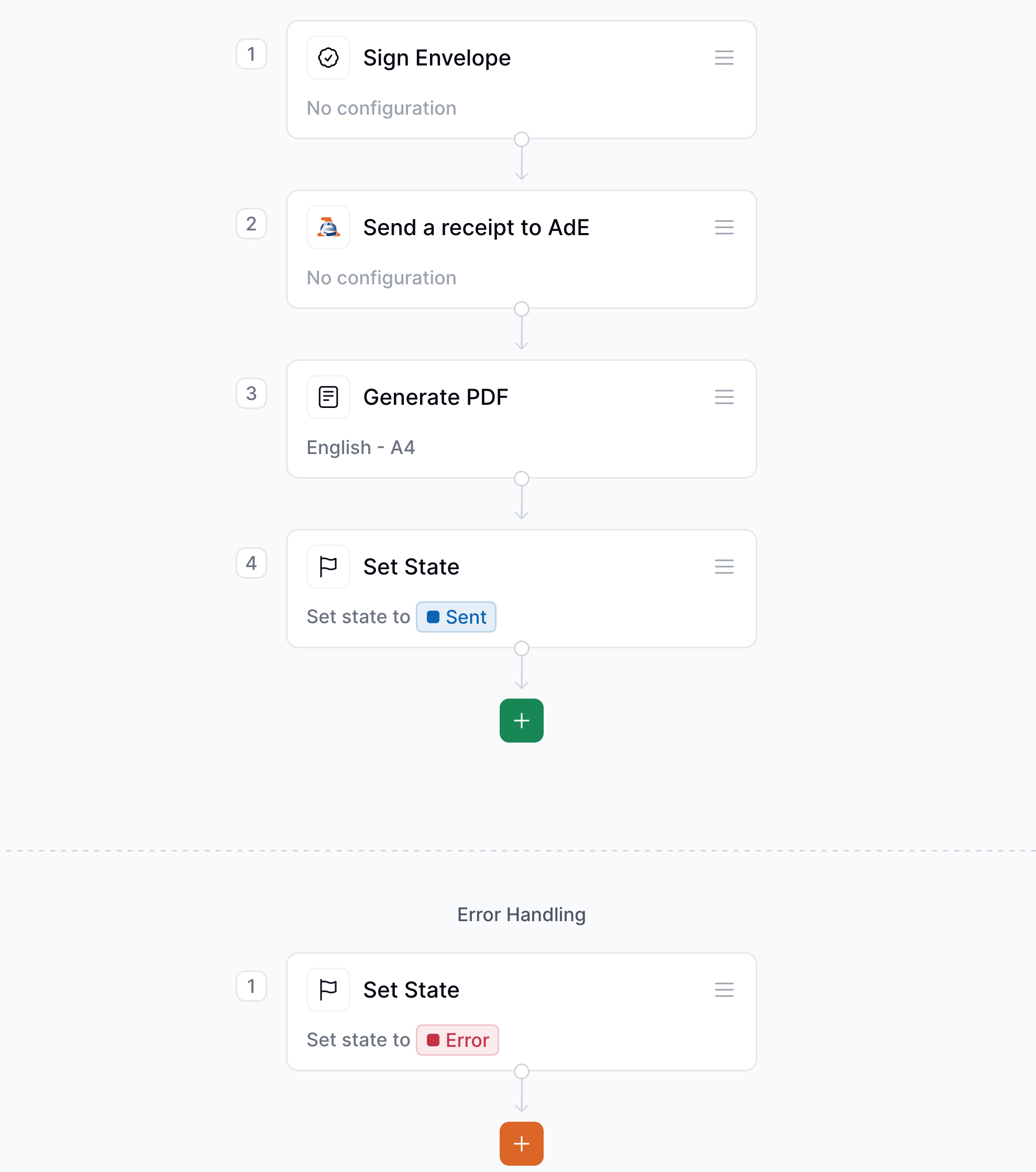
Smart Receipts issue receipt workflow
This workflow will issue a Smart Receipt through Italy’s AdE.
5
Prepare Void Workflow
- Template
- Code
- Build from scratch
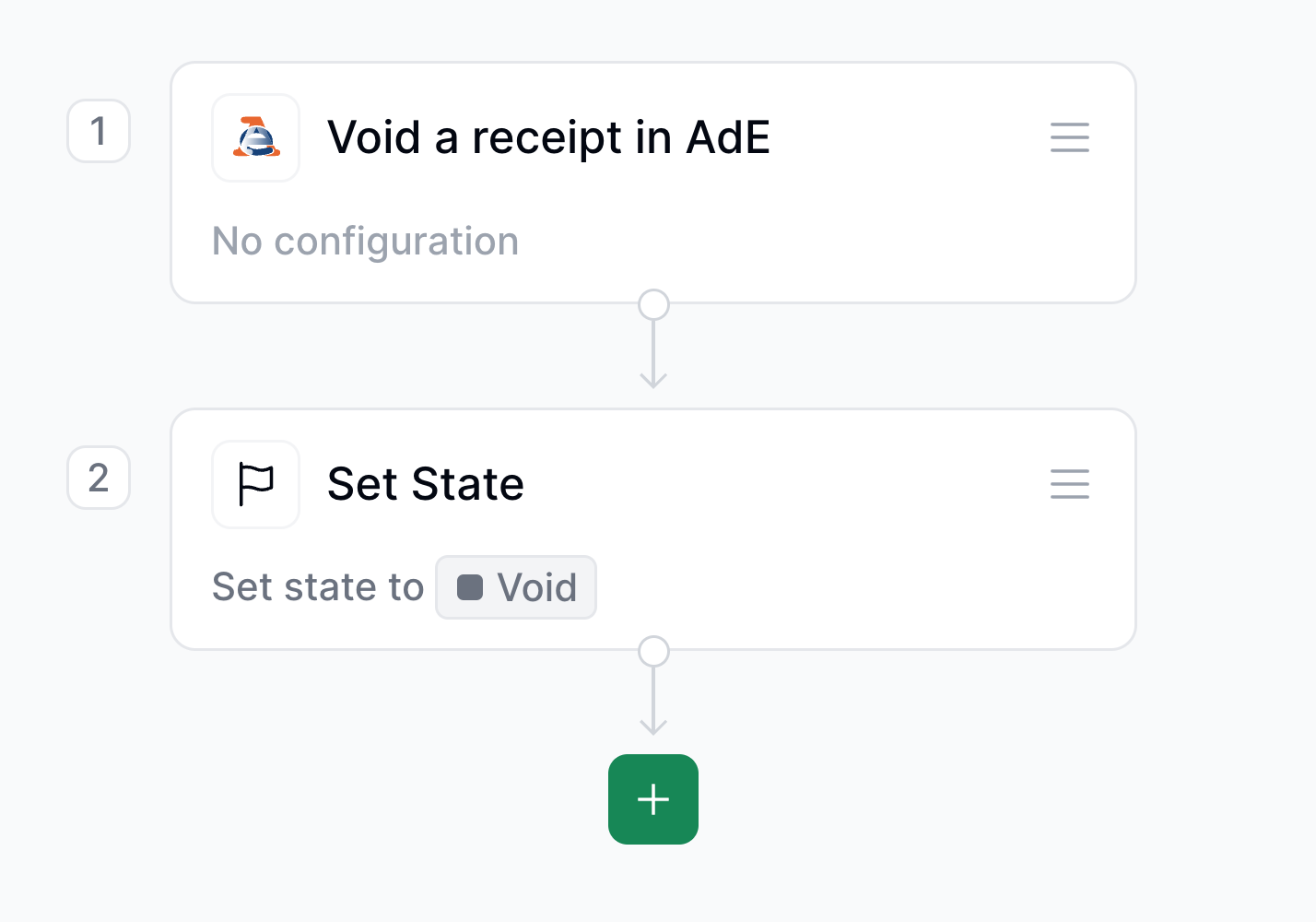
Smart Receipts void receipt workflow
This workflow will void Smart Receipts from the AdE.
Running
Each company who will issue e-receipts must first register as a supplier in Invopop. In this section we’ll first explain how to register a supplier using the registration workflow we setup, and then how to issue and void invoices on behalf of that supplier, with the corresponding workflows. As usual, the recommended approach for running jobs is to perform two steps; first upload the document to the silo, second create a job.Register a Supplier
You can register suppliers either manually via the Invopop Console or programmatically via the API. The process is essentially the same, so for this guide we’ll demonstrate the manual process.- Navigate to Contacts → Suppliers in the sidebar
- Click + New Supplier
- In the editor, enter the supplier details
View supplier Data for sandbox
View supplier Data for sandbox
You may notice that we included the Italian fiscal code in the supplier, this is not necessary at the moment but will be asked for, if not provided, during the registration process.
Processing state. Tap the Meta tab to see the registration link:
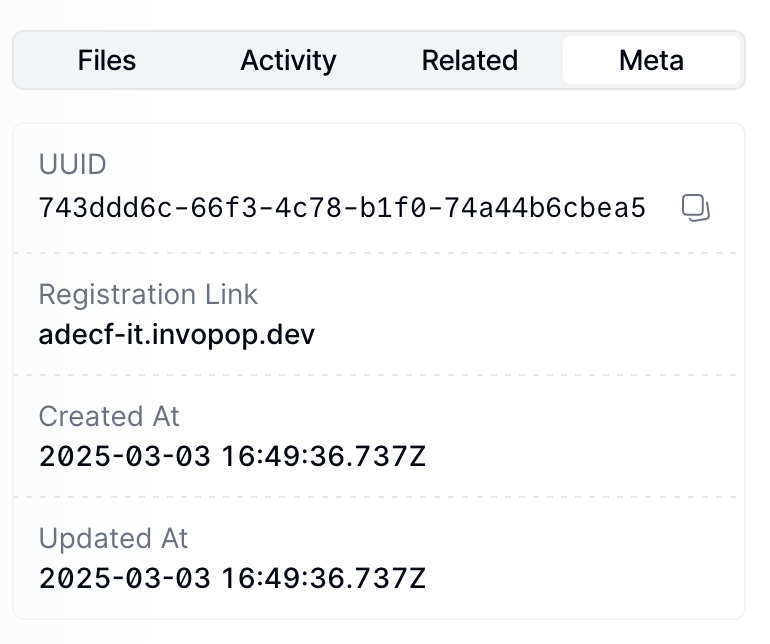
You can access the registration link via the API by fetching the silo
entry and reading the
meta row where
the key is set to registration-link.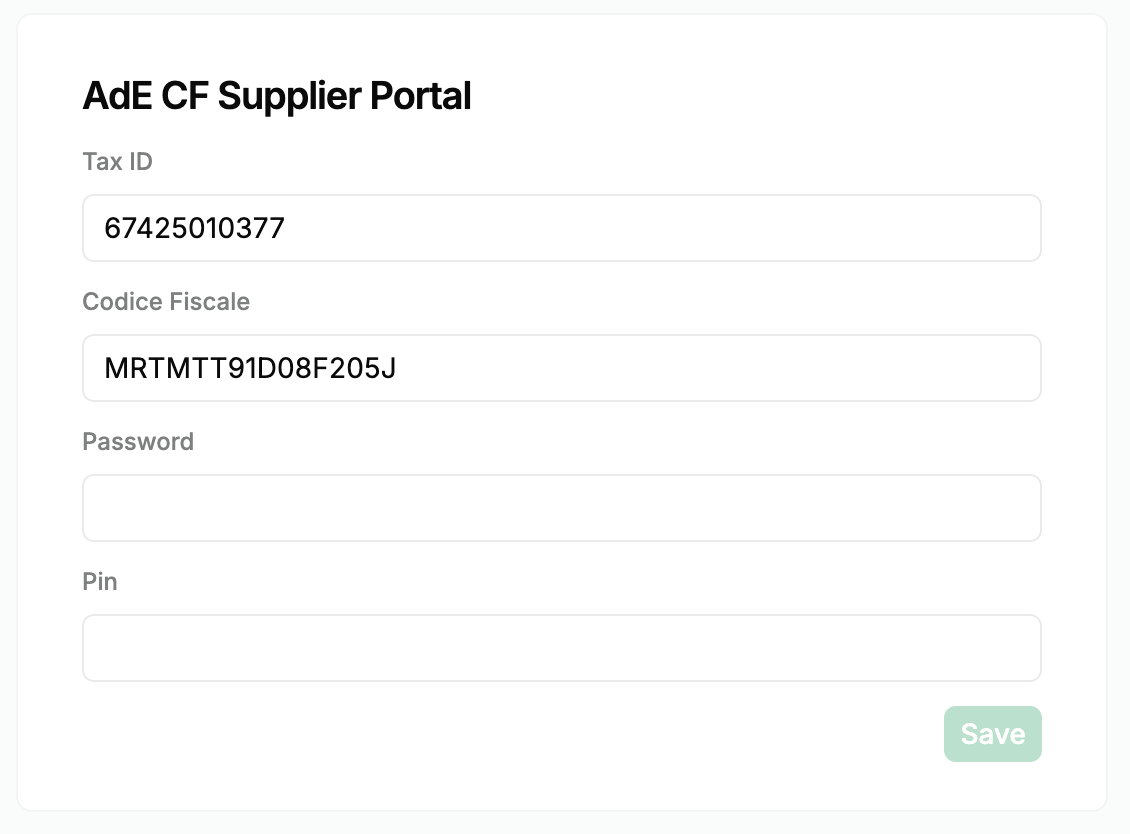
Send an Invoice
Use these GOBL document examples as templates in the Invopop Console or when creating silo entries via the API. For proper validation and normalization, set these properties in your GOBL Invoices:- Set
$regiontoIT - Include
it-ticket-v1in$addons
- The
it-ticket-v1addon ensures validation using AdE CF V1 rules - Extensions (
ext) fields specify values that cannot be determined otherwise:- Items have an extension identifying them as goods or services
- VAT exemptions require an Italian exemption code
- The
prices_includefield indicates that item prices include VAT - VAT for “Cleaning Products” automatically sets to the standard rate
- Totals and calculations are generated automatically
B2C Invoice
B2C Invoice
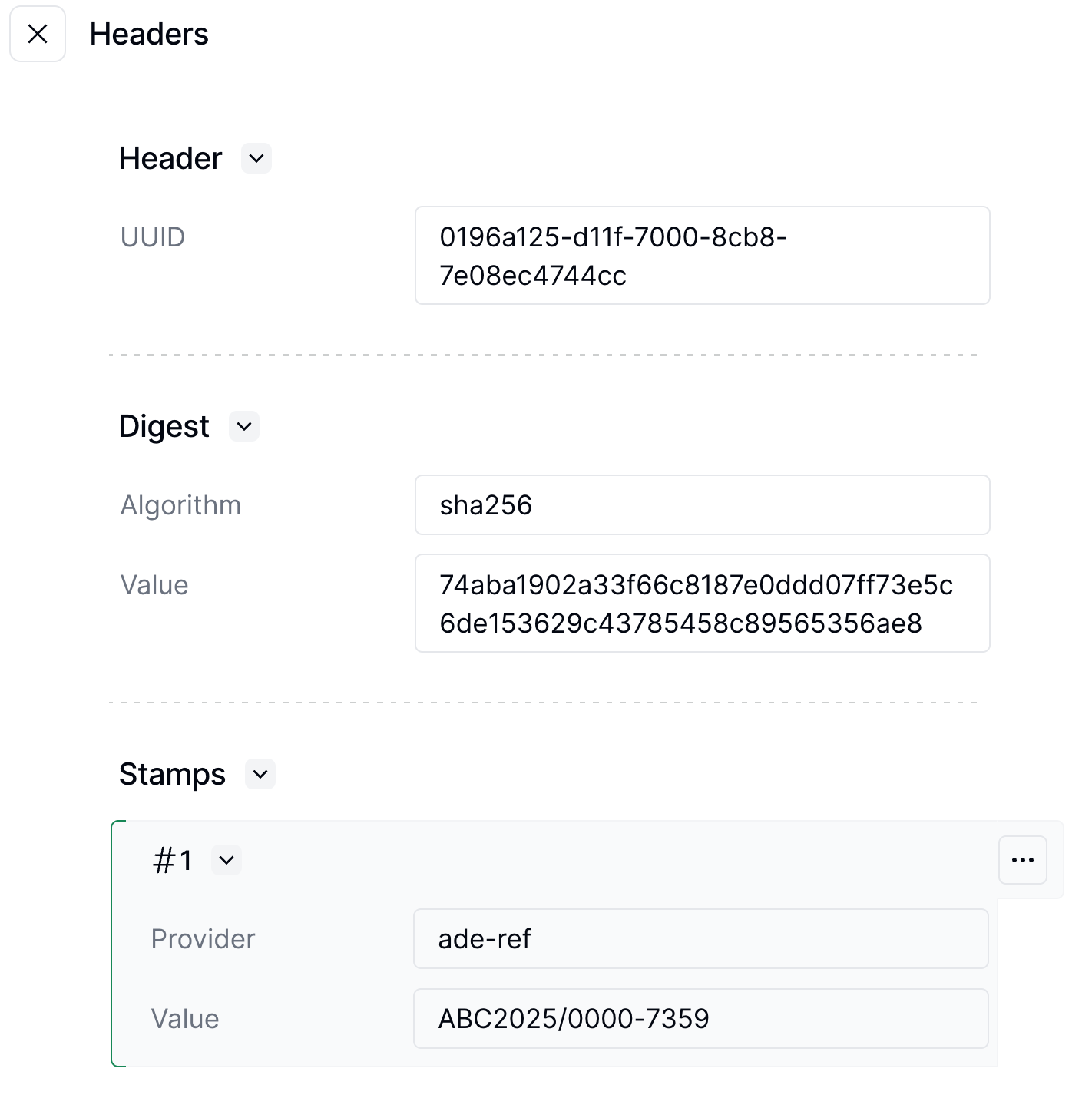
it-ticket-line-ref extension, is essential for processing refunds. The example below shows a complete invoice with these references.
B2C Invoice Complete
B2C Invoice Complete
Refund an Invoice
When a customer requests a refund for specific items, you can process it by issuing a corrective invoice. Since this is still considered sending an invoice, you can use the same workflow as before. To create a corrective invoice take a original GOBL Invoice and:- Set the
typefield tocorrective - Add a reference to the original invoice using the
preceedingobject - Include the original document number stamp from the first invoice
- Keep the lines and quantities you want to refund
- Preserves the
it-ticket-line-refextension from the original invoice - References the original invoice using the
preceedingobject - Maintains the same line item references for accurate tracking
Corrective Invoice
Corrective Invoice
Void an Invoice
You can void an invoice if it was issued in error, such as when a receipt is accidentally sent twice. To void an invoice:- Locate the silo entry uuid of the invoice
- Run the “Void AdE CF Invoices” workflow with this uuid
FAQ
Please contact the Invopop support team if you have any questions that are not listed here.Is this a substitute for SDI?
Is this a substitute for SDI?
AdE CF is not a substitute for SDI. Invopop works with SDI to issue electronic invoices using the FatturaPA and is the main tool available to issue electronic invoices in Italy. AdE CF should only be used when customer information is not available, like in online B2C scenarios.
How do I correct mistakes in an issued AdE CF invoice?
How do I correct mistakes in an issued AdE CF invoice?
You cannot modify an AdE CF invoice after issuing it. Instead you must:
- Void the incorrect invoice using the “Void AdE CF Invoices” workflow
- Issue a new invoice with the correct information
Do I still need to add a series and code to the invoice?
Do I still need to add a series and code to the invoice?
We recommend adding a series and code to the invoice so that you can keep track internally even though the AdE will generate a document number.